
Student Guide
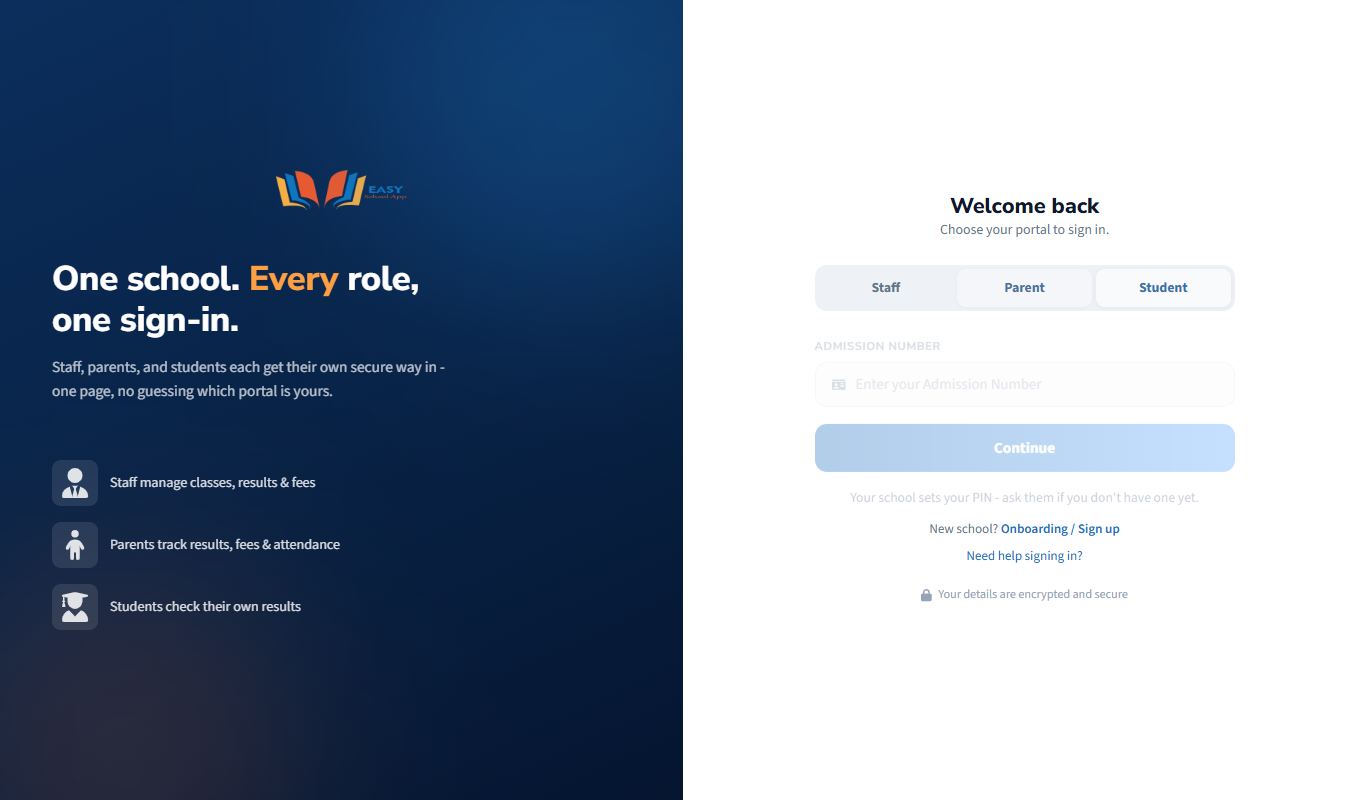
The Student Portal shows your assignments, tests, exams and report card. You sign in with your Admission Number and a 4-digit PIN from your school.
Sign in as a student
Purpose: Open the Student Portal to see assignments, take tests and exams, and view your report card.
Who can use it: Students whose school has set a login PIN for them.
Steps
- Open the EasySchoolApp web address your school gave you.
- Click the Student tab.
- Type your Admission Number exactly as it appears on your ID card (for example
BFA2026-001). - Click Continue.
- Type your 4-digit PIN and click Log In.
Common errors and fixes
| Problem | Fix |
|---|---|
| "Admission Number not found. Please check with your school." | Check the dashes and letters. If it is correct, your school has not created your login yet. Ask them to use Set login PIN on your record. |
| "Admission Number not registered for login." | Your record exists but has no PIN. Ask the school to set one. |
| "Invalid PIN." | Type it again. If you forgot it, use Forgot PIN? or ask the school to set a new one. |
Reset a forgotten PIN
Purpose: Choose a new PIN when you cannot remember the old one.
Who can use it: Everyone (staff, parents, students).
Steps
- On the sign-in page, choose your tab (Staff, Parent or Student).
- Type your email, phone number or Admission Number and click Continue.
- Click Forgot PIN?.
- Staff: click Send Reset OTP. Parents and students: a code is sent automatically.
- Type the code you receive.
- Type your new PIN twice (New PIN and Confirm PIN).
- Click the button to save and sign in (Set PIN & Login or Reset PIN & Login).
Common errors and fixes
| Problem | Fix |
|---|---|
| "PINs do not match." | Type the same PIN in both boxes. |
| "PIN must be 4-6 digits." | Staff PINs are 4 to 6 numbers. Parent and student PINs are exactly 4 numbers. |
| "No parent phone number on file…" (student) | The school has no parent phone for this student. Ask the school office to set a new PIN for you. |
| "Maximum resend attempts reached. Please wait 10 minutes." | Wait 10 minutes, then try again. |
| The code has expired | Ask for a new code with Resend OTP / Resend code and use it straight away. |
Use the Student Portal
Purpose: See your day, your schoolwork, your attendance and your results.
Who can use it: Students.
Steps
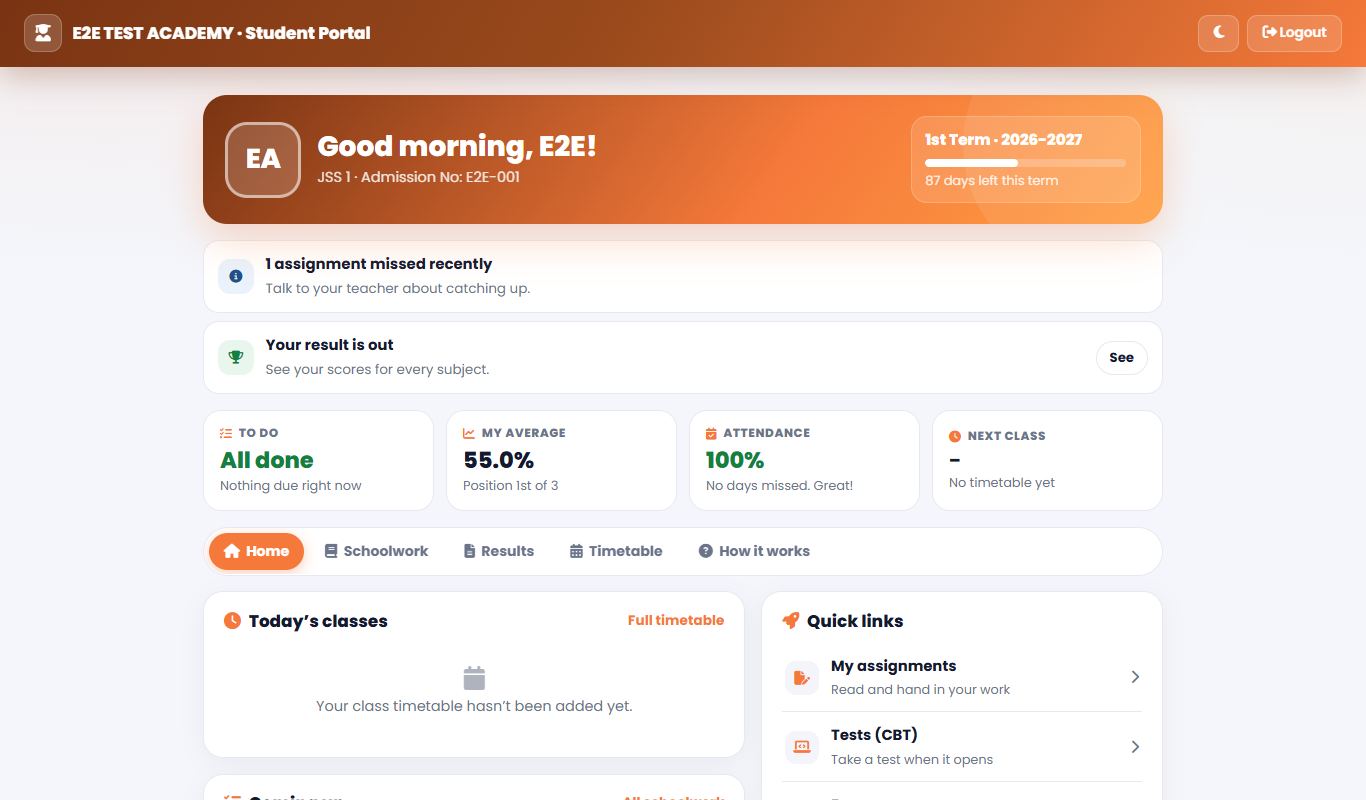
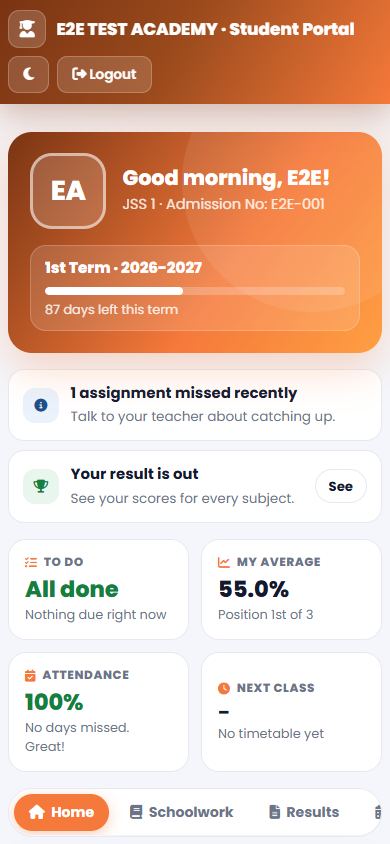
- Sign in on the Student tab. Your dashboard opens. (If you go to the school's main web address while signed in, you are always brought back here.)
- The top shows a greeting, your class and the term: how many days are left and when the next term begins.
- Coloured boxes tell you what needs doing, for example an exam open right now, a test to take, or an assignment due within two days. Click the button on the box to go straight there.
- Four tiles give the picture at a glance. Click one to open its tab:
- To do – assignments, tests and exams waiting for you.
- My average – your average and position once the school publishes results.
- Attendance – how many days you were present, late or absent this term.
- Next class – the class happening now or next.
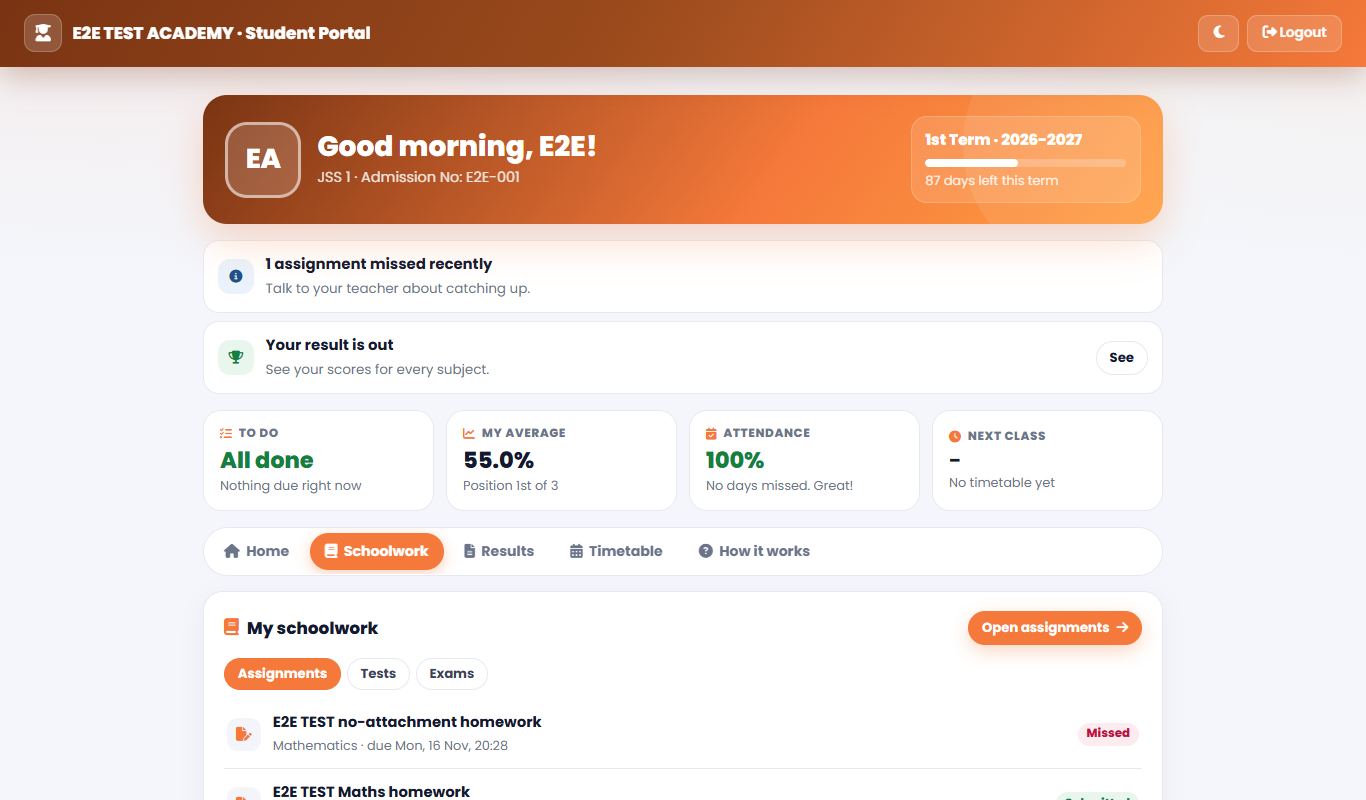
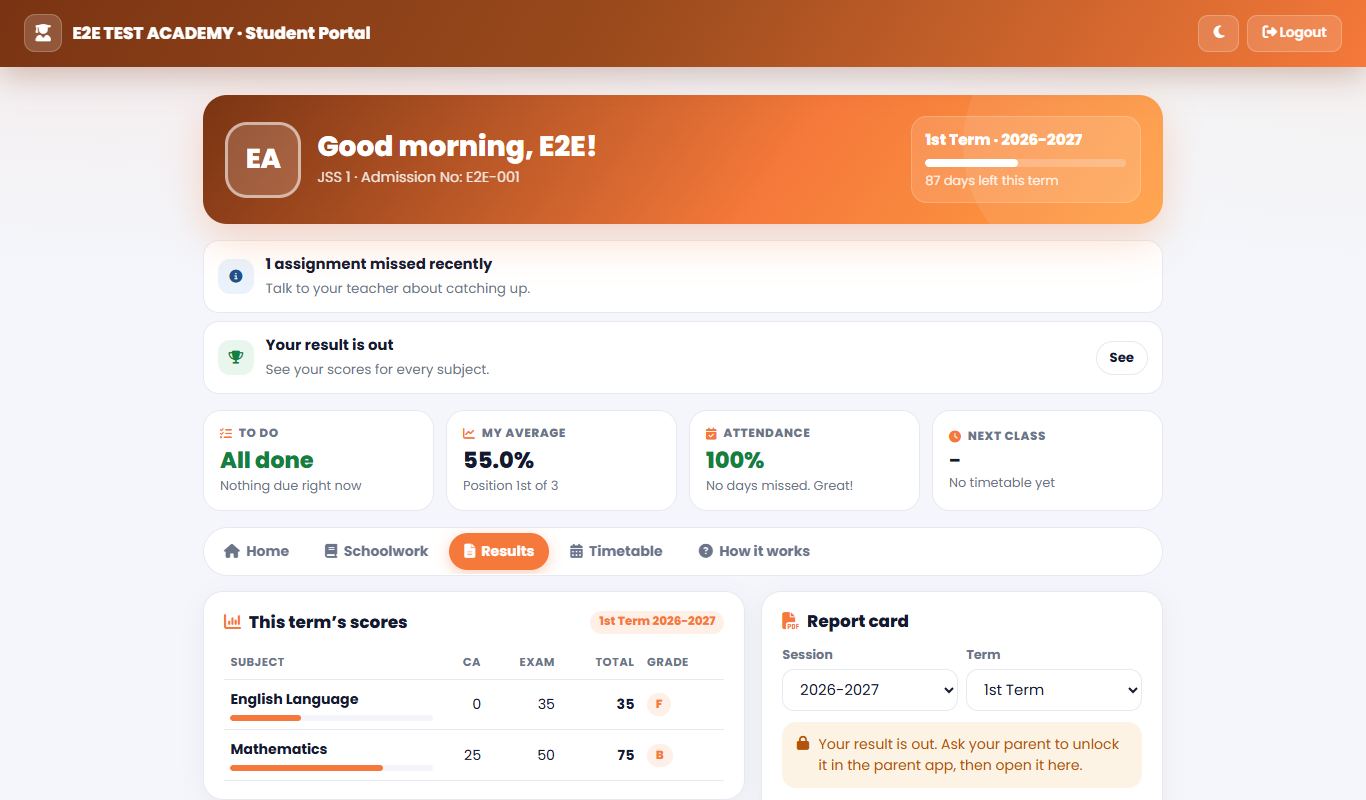
- The tabs:
- Home – Today's classes, Coming up, Quick links to your assignments, tests, exams and lesson plan, and My attendance.
- Schoolwork – your assignments, tests and exams with their status and scores (once your teacher releases them).
- Results – this term's scores for every subject, and your Report card.
- Timetable – your class's week, day by day.
- How it works – a short explanation of everything.
- Under Report card, choose the Session and Term:
- "Unlocked." – click Open my report card.
- "Your result is out. Ask your parent to unlock it…" – your parent unlocks it in the Parent Portal first.
- "This result hasn't been published yet." – wait for the school to publish it.
Submit an assignment
Purpose: Hand in homework online.
Who can use it: Students.
Where: Student Portal › My Assessments › Assignments
Steps
- Open My Assignments.
- Click the assignment. Read the instructions and download the instruction file if there is one.
- Type your answer, or attach your file.
- Submit before the due date.
Common errors and fixes
| Problem | Fix |
|---|---|
| "Assignment submission date has passed." | The due date is over. Speak to your teacher. |
Take a CBT test or exam
Purpose: Answer a computer-based test or exam set by your teacher.
Who can use it: Students.
Where: Student Portal › My Assessments › Tests or Exams
Steps
- Open Available Tests or Available Exams.
- Click the test or exam when it opens (at its start time).
- Read the instructions and start.
- Answer each question by choosing an option. Time remaining shows at the top.
- Use the question numbers to jump to any question. Green means answered.
- Submit when you finish. If the time runs out, your answers are submitted automatically.
- If your teacher allowed it, your result shows straight away.
Common errors and fixes
| Problem | Fix |
|---|---|
| "Assessment already open" | The exam is open in another tab or device. Close the other one. |
| The exam stopped because of network or power | Tell your teacher at once. They may be able to reset your attempt. |