
Parent Guide
The Parent Portal lets you follow your child's school life from your phone: timetable, assignments, tests, results, fees, the school bus and messages with teachers.
You sign in with the phone number the school has for you. One phone number opens all your children in the school.
Sign in as a parent
Purpose: Open the Parent Portal to follow your child's classes, results, fees and school bus.
Who can use it: Parents and guardians whose phone number the school saved on the child's record.
Steps
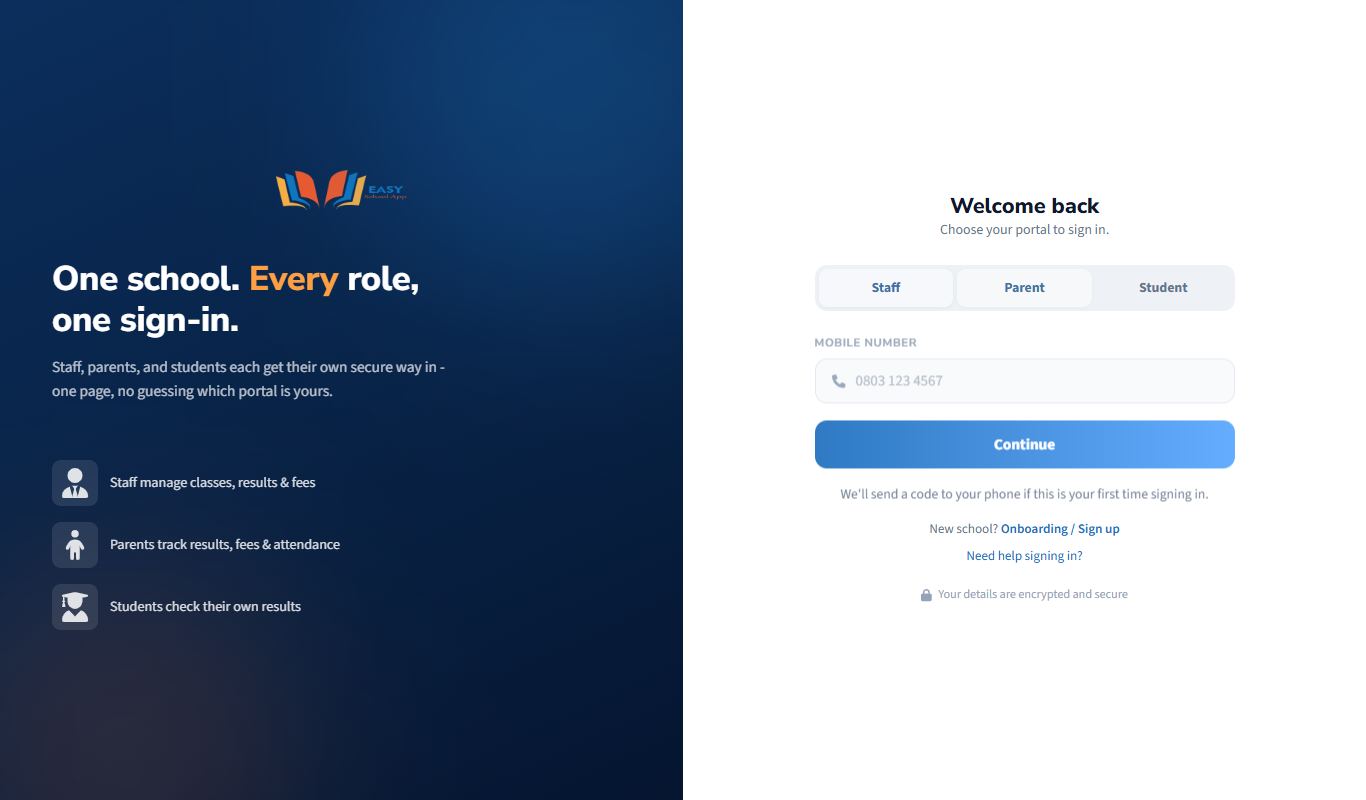
- Open the EasySchoolApp web address your school gave you.
- Click the Parent tab.
- In Mobile Number, type the phone number the school has for you (11 digits, for example
0803 123 4567). - Click Continue.
- Type your 4-digit PIN and click Log In.
First time signing in
- After Continue, the app sends a code by SMS to your phone.
- Type the code and click Verify Code.
- Create a 4-digit PIN you will remember. Type it in New PIN and Confirm PIN.
- Click Set PIN & Login.
Common errors and fixes
| Problem | Fix |
|---|---|
| "This phone number is not registered with any student" | The school has a different number for you. Call the school office to update the child's Parent details. |
| "Enter a valid 11-digit number" | Type the number without +234, spaces or dashes, for example 08031234567. |
| The code does not arrive | Wait 1–2 minutes and click Resend code. Check that your phone has network and can receive SMS. |
Reset a forgotten PIN
Purpose: Choose a new PIN when you cannot remember the old one.
Who can use it: Everyone (staff, parents, students).
Steps
- On the sign-in page, choose your tab (Staff, Parent or Student).
- Type your email, phone number or Admission Number and click Continue.
- Click Forgot PIN?.
- Staff: click Send Reset OTP. Parents and students: a code is sent automatically.
- Type the code you receive.
- Type your new PIN twice (New PIN and Confirm PIN).
- Click the button to save and sign in (Set PIN & Login or Reset PIN & Login).
Common errors and fixes
| Problem | Fix |
|---|---|
| "PINs do not match." | Type the same PIN in both boxes. |
| "PIN must be 4-6 digits." | Staff PINs are 4 to 6 numbers. Parent and student PINs are exactly 4 numbers. |
| "No parent phone number on file…" (student) | The school has no parent phone for this student. Ask the school office to set a new PIN for you. |
| "Maximum resend attempts reached. Please wait 10 minutes." | Wait 10 minutes, then try again. |
| The code has expired | Ask for a new code with Resend OTP / Resend code and use it straight away. |
Find your way around the Parent Portal
Purpose: Understand the Parent Portal home screen.
Who can use it: Parents.
Steps
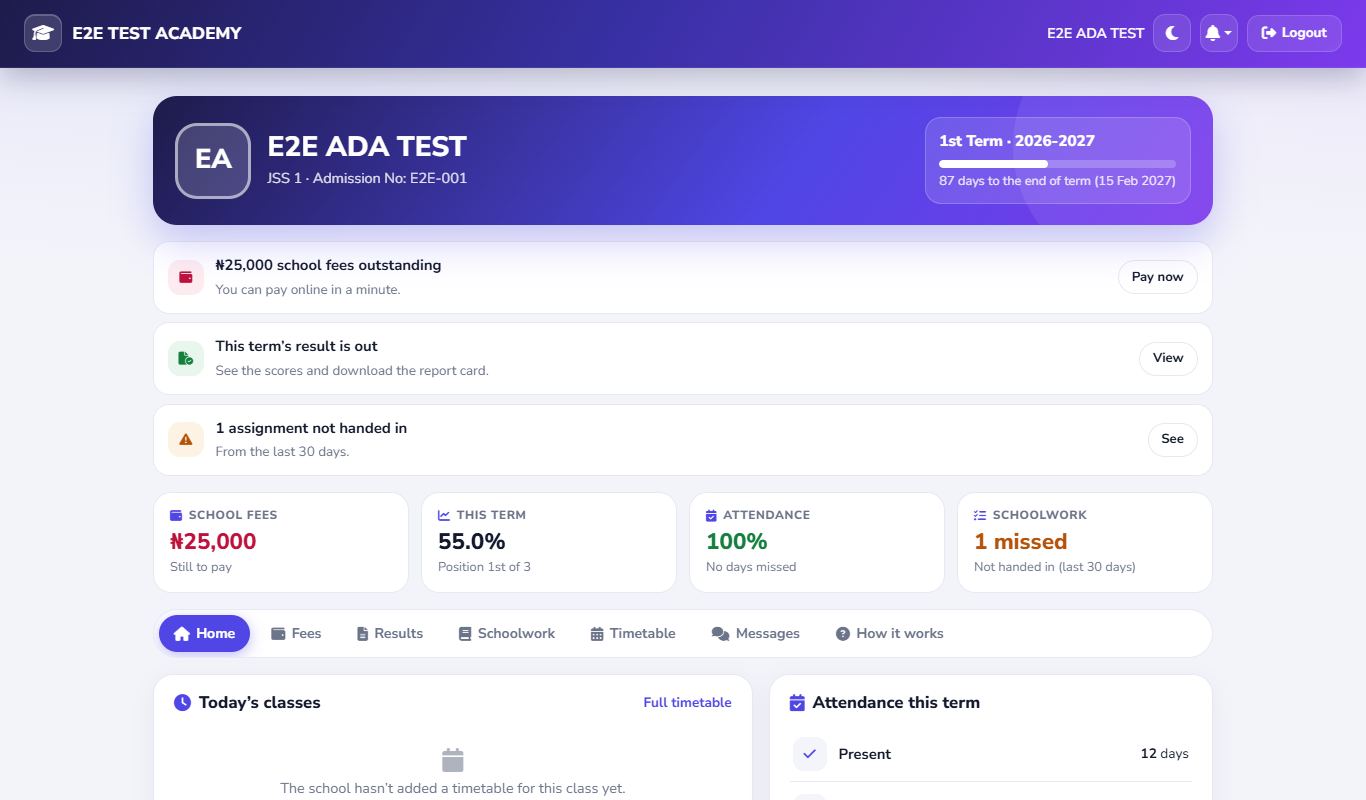
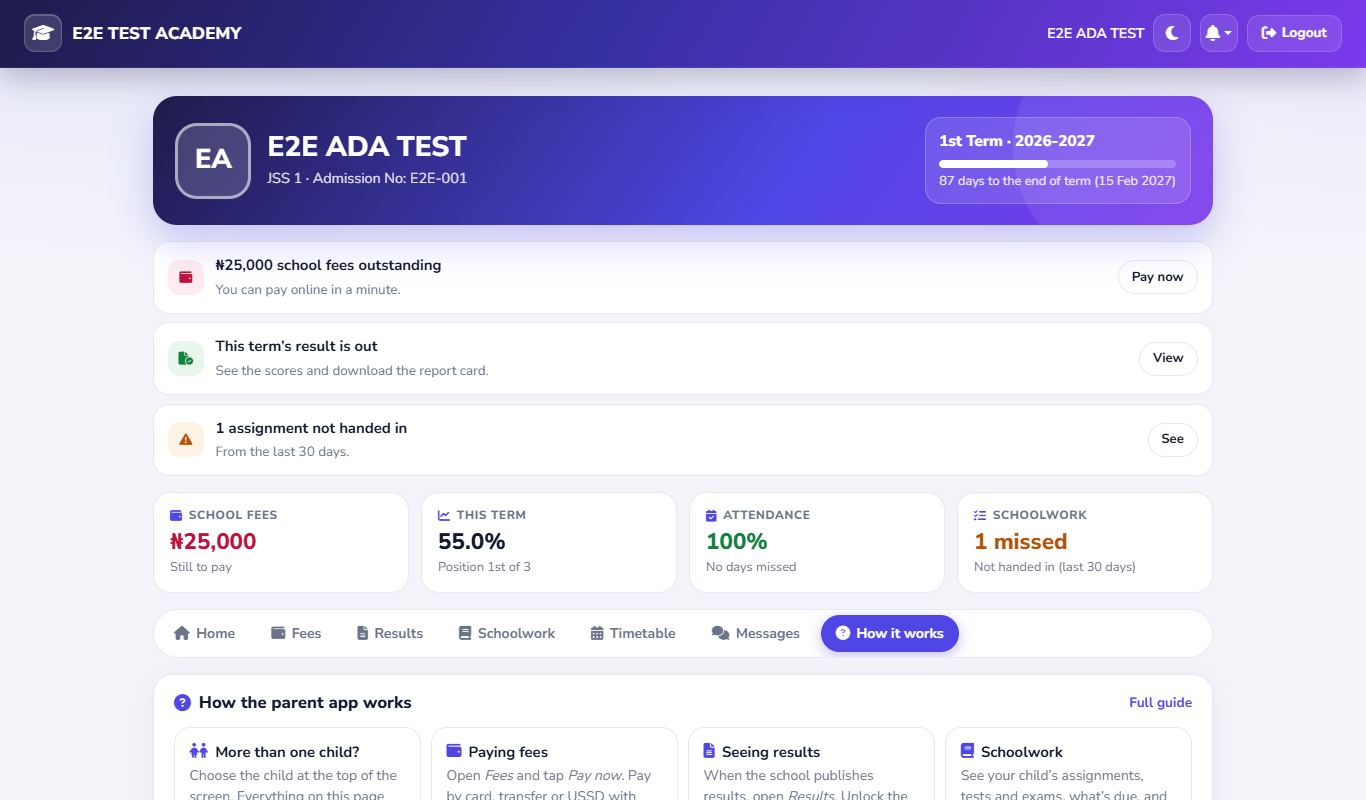
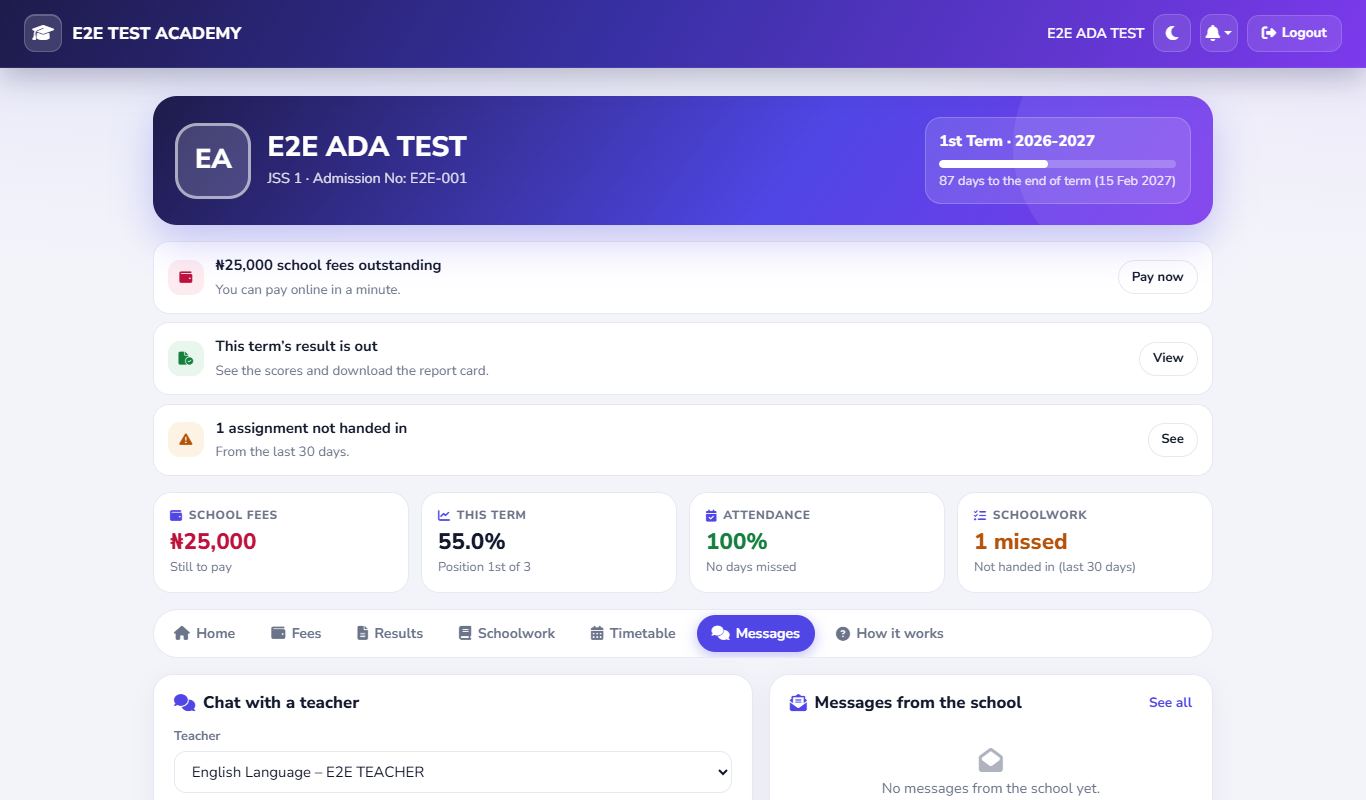
- Sign in on the Parent tab. Your dashboard opens. (If you go to the school's main web address while signed in, you are always brought back here.)
- If you have more than one child in the school, choose the child at the top right. Everything on the page changes to that child.
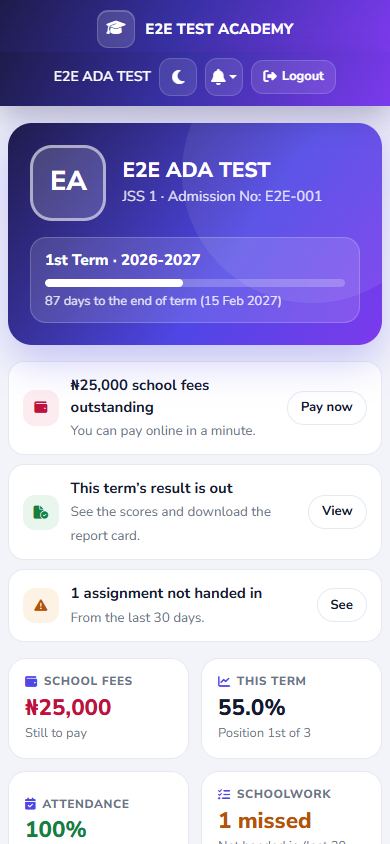
- The top of the page shows your child's photo, name, class and Admission No, and the current term: how many days are left, the mid-term break and when the next term begins.
- Needs your attention lists up to three things to do, each with a button, for example fees still owed (Pay now), a result that is out (View), or work not handed in (See).
- Four tiles give the picture at a glance. Tap one to open its tab:
- School fees – what is still to pay this term.
- This term – your child's average and position once results are published.
- Attendance – the share of school days your child was in school this term.
- Schoolwork – assignments, tests and exams to do or missed.
- The tabs below hold the details: Home, Fees, Results, Schoolwork, Timetable, Messages and How it works.
- Home shows Today's classes (the one happening now is highlighted), Coming up, Attendance this term, the latest From the school messages and, if your child takes the school bus, Track the bus.
- The top bar has the dark/light button (moon), the bell for notifications, and Logout.
Check and pay school fees online
Purpose: See what you owe and pay online by card, bank transfer or USSD.
Who can use it: Parents.
Where: Parent Portal › Fees tab
Steps
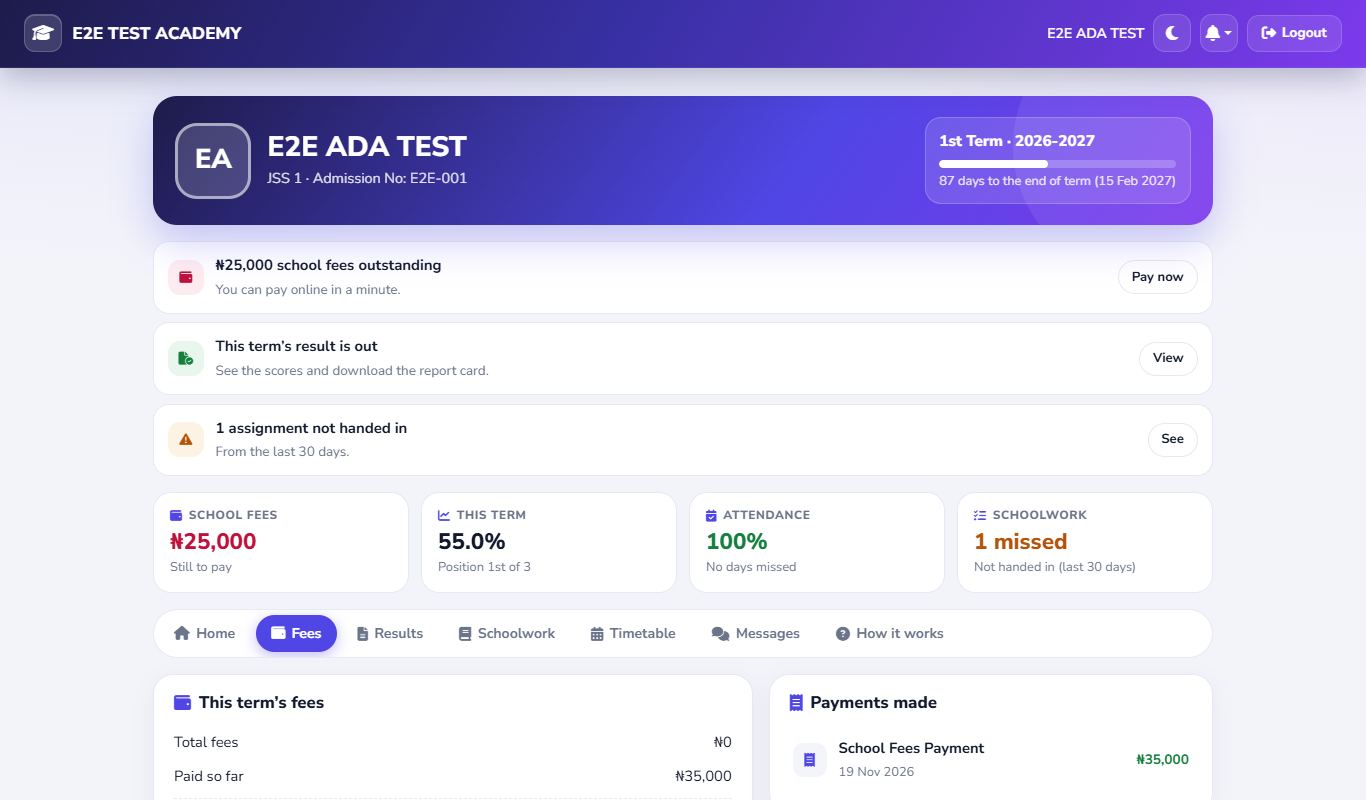
- In the Parent Portal, open the Fees tab (or tap the School fees tile).
- This term's fees lists each fee item, then Total fees, any Discount, anything Owed from before, Paid so far and Still to pay.
- Click Pay ₦… now. The amount includes a small processing fee, shown just above the button. Paystack may add its own small charge.
- Complete the payment on the secure Paystack window.
- When the payment is confirmed you see Payment received, and a receipt is sent by SMS. Payments made lists every payment, and the balance updates.
Common errors and fixes
| Problem | Fix |
|---|---|
| "Couldn't load this." | Check your internet connection and refresh the page. |
| Paid but the balance did not change | Wait a few minutes and refresh. If it still has not changed, give the school's bursar the reference shown after paying. |
| The amount looks wrong | Ask the school's bursar for a student statement. |
View and download your child's report card
Purpose: See your child's scores for the term and open the report card.
Who can use it: Parents.
Where: Parent Portal › Results tab
Steps
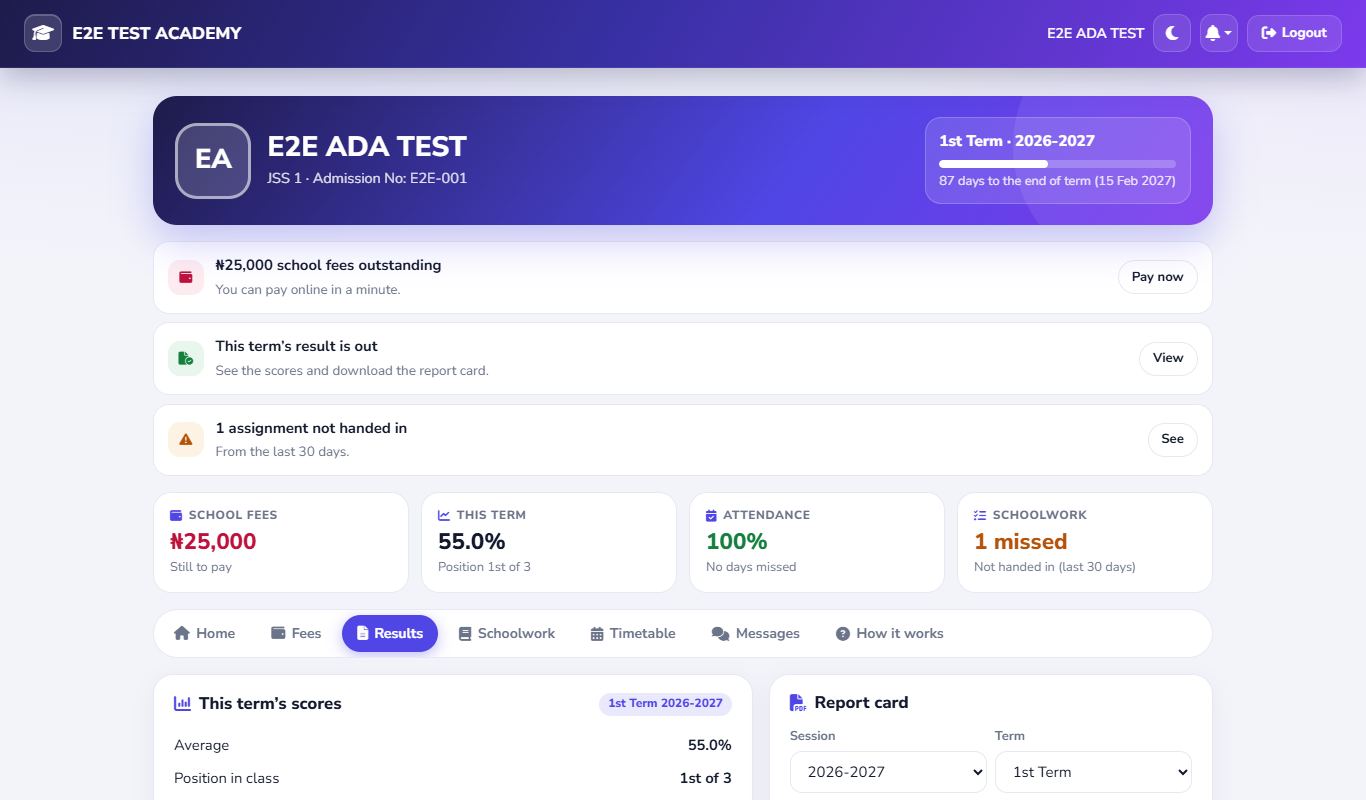
- In the Parent Portal, open the Results tab (or tap the This term tile).
- This term's scores shows your child's Average, Position in class and every subject's CA, exam, total and grade, once the school has published the results.
- Under Report card, the current Session and Term are already chosen. To see an older result, choose another.
- What you see next depends on the result:
- "This result hasn't been published yet." – nothing to do now. You'll get a notification when it's ready.
- "Unlocked." – click Open report card.
- "Type the token number the school gave you" – type it and click Unlock.
- "The result is ready. Unlock it once…" – click Unlock result, pay online, then Open report card. Your token number is shown and sent by SMS.
Common errors and fixes
| Problem | Fix |
|---|---|
| "The school hasn't set up sessions and terms yet." | Contact the school. |
| "This school can't sell result tokens online yet." | The school hasn't connected its bank account. Ask the school for a token. |
| The token is not accepted | Check that you typed it correctly, and that it is for this child and term. |
Follow assignments, tests, exams and the timetable
Purpose: Keep track of your child's schoolwork and class timetable.
Who can use it: Parents.
Where: Parent Portal › Schoolwork and Timetable tabs
Steps – schoolwork
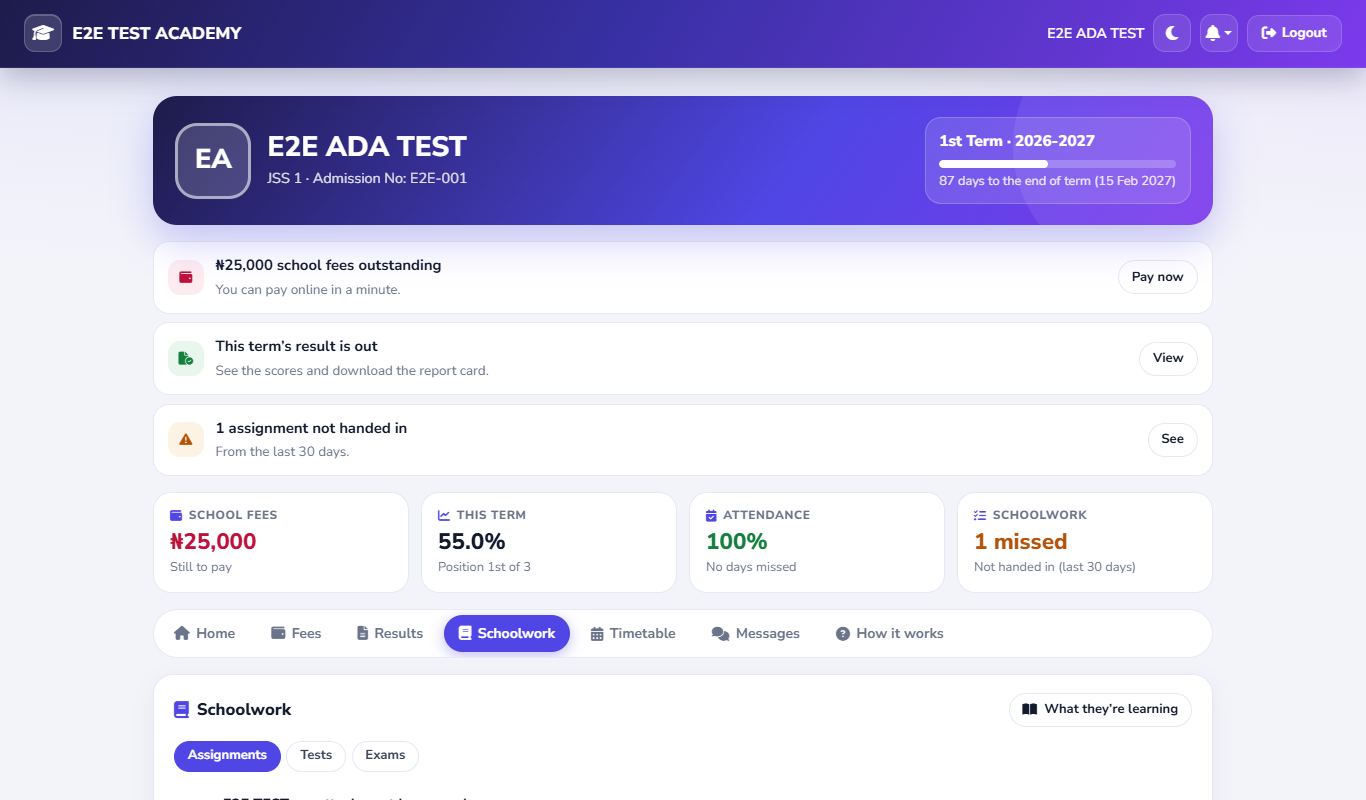
- Open the Schoolwork tab (or tap the Schoolwork tile).
- Choose Assignments, Tests or Exams. Each item shows the subject, the due date or time and its status: To do, Open now, Coming up, Submitted, Graded or Missed. A score shows once the teacher releases it.
- Click What they're learning to see the class's lesson plan.
Steps – timetable
- Today's classes on the Home tab shows today's periods. The one happening now is highlighted.
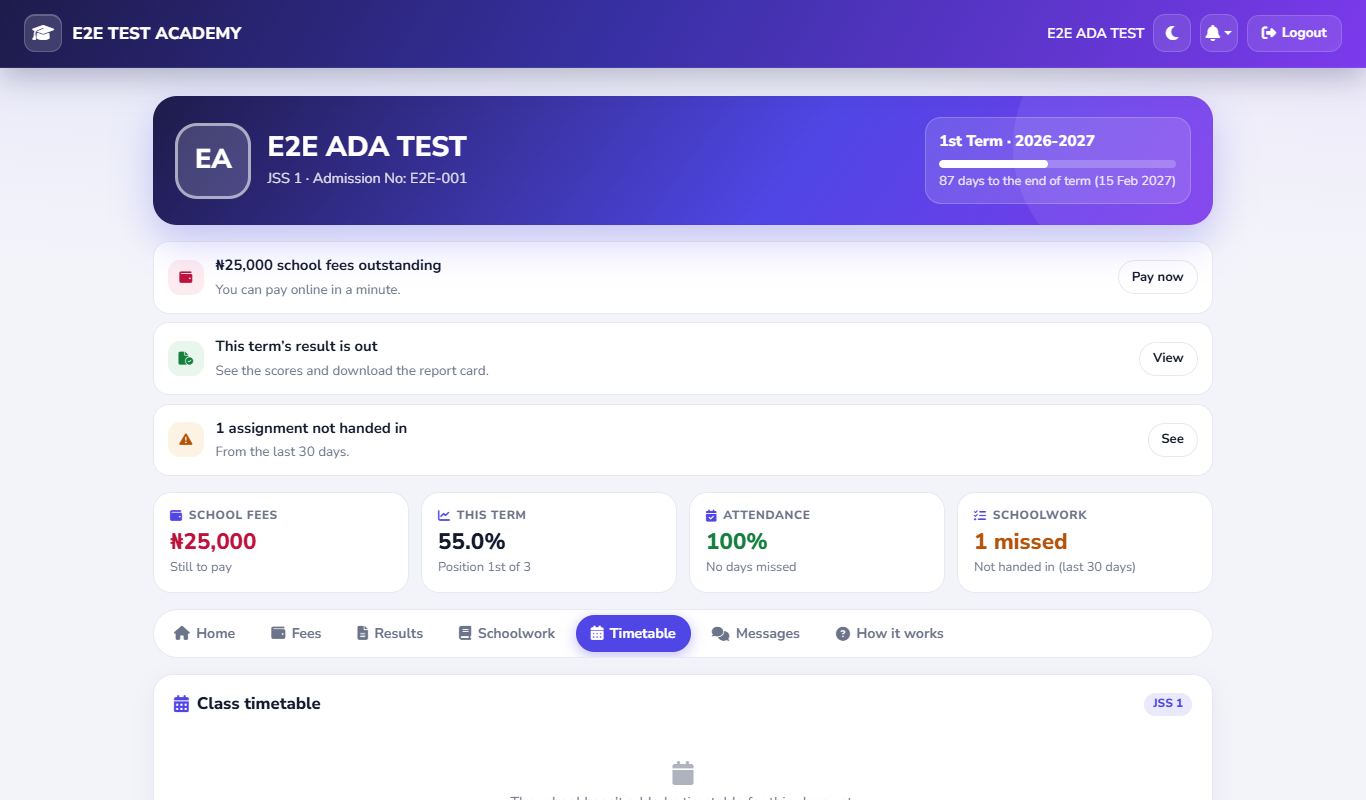
- Open the Timetable tab for the whole week. Tap a day to see its periods and the break.
Message your child's teacher
Purpose: Ask a question or share information with your child's teacher, and read the messages the school has sent you.
Who can use it: Parents.
Where: Parent Portal › Messages tab
Steps
- Open the Messages tab.
- Under Chat with a teacher, choose the teacher. Each teacher is shown with the subject they teach (for example "Mathematics – …").
- Type in Write a message… and click the send (paper plane) button.
- Replies appear in the same conversation, and you get a notification on the bell.
- Messages from the school keeps every SMS the school sent to your phone, so you can read it again. Click See all for older messages.
Track the school bus
Purpose: See where your child's school bus is, and get an SMS when it reaches your stop.
Who can use it: Parents whose child is assigned to a bus route.
Where: Parent Portal › Home › School bus › Track the bus
Steps
- On the Home tab, look for the School bus card. It only shows when your child is on a school bus route.
- Click Track the bus. The Track School Bus page opens.
- When the driver has started a trip, the map shows the bus. Otherwise you see "Checking trip status…" or a message that no trip is running.
Install the app on your phone
Purpose: Open EasySchoolApp from your home screen like a normal app.
Who can use it: Everyone.
Steps (Android, Chrome)
- Open the EasySchoolApp web address in Chrome.
- Staff: click your avatar and choose Install app. Everyone else: tap the browser menu (⋮) and choose Install app or Add to Home screen.
- Confirm. The EasySchoolApp icon appears on your home screen.
Steps (iPhone, Safari)
- Open the web address in Safari.
- Tap the Share button, then Add to Home Screen.
- Tap Add.