
Driver Guide
You drive a school bus. You use EasySchoolApp on your phone to start each trip and share the bus location. The school watches the bus, and parents get an SMS when you reach their stop.
Before you start
- The School Admin must give you the Driver role and tick Bus driver on your staff record.
- The School Admin must assign you to a vehicle in Bus › Vehicles.
- Install the app on your phone (see Install the app on your phone).
Your tasks
Sign in as staff
Purpose: Open the staff portal to do your daily work.
Who can use it: School Admin, Principal, Head Mistress, Teacher, Bursar, Driver, Chief Security.
Steps
- Open your school's EasySchoolApp web address (for example
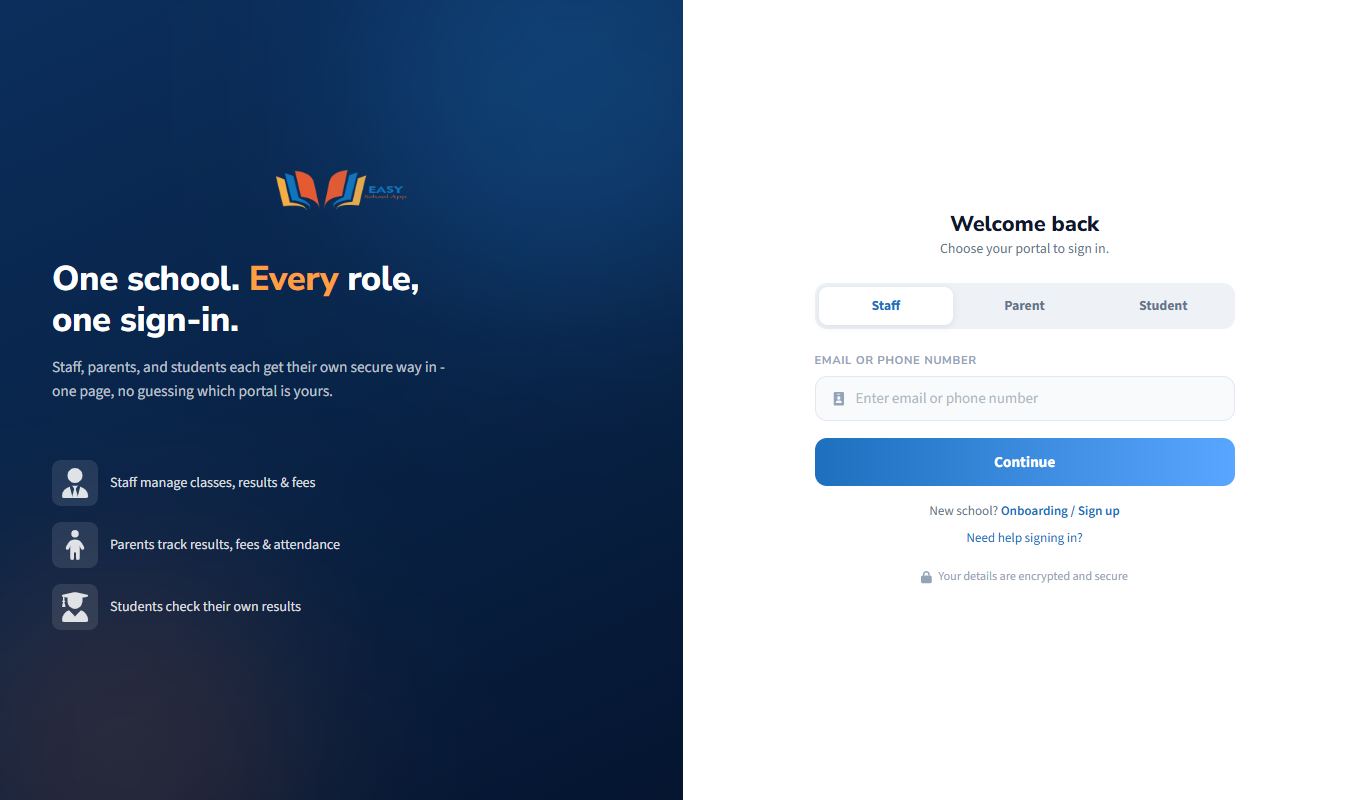
https://app.easyschoolapp.com). - On the Welcome back page, make sure the Staff tab is selected.
- In Email or Phone Number, type the email or phone number the school registered for you.
- Click Continue.
- Type your PIN in Enter PIN.
- Tick Remember me only if this is your own device.
- Click Login. Your Dashboard opens.
First time signing in (no PIN yet)
- After you click Continue, the app says "You don't have a PIN set."
- Click Send OTP. A 6-digit code (OTP) goes to your registered phone (SMS) and email.
- Type the code in Enter OTP and click Verify OTP.
- Choose a new PIN of 4 to 6 digits. Type it in New PIN and again in Confirm PIN.
- Click Set PIN & Login.
Common errors and fixes
| Problem | Fix |
|---|---|
| "Account not found. Please contact your school." | Check for typing mistakes. Try your phone number instead of your email (or the reverse). If it still fails, ask your School Admin to check your record on Staff access & roles. |
| "This account is registered as a parent…" | You are on the wrong tab. Click the Parent tab and sign in there. |
| The OTP does not arrive | Wait 1–2 minutes, check your email spam folder, then click Resend OTP. Make sure the school has your correct phone number and email. "Please wait 30 seconds before requesting again" means you clicked too quickly. |
| "OTP expired. Please request a new one." | Click Resend OTP and use the new code straight away. |
| "Invalid PIN." | Type it again slowly. If you forgot it, use Forgot PIN? (see Reset a forgotten PIN). |
| A page says your school is suspended or billing is locked | Your school's subscription needs attention. Ask the School Admin to contact EasySchoolApp support. |
Run a bus trip
Purpose: Start a pickup or drop-off trip and share the bus location, so the school can watch the bus and parents get an SMS when it reaches their stop.
Who can use it: Driver (and School Admin).
Where: Facilities › My bus trips, or the bus link in Quick Actions on the Dashboard
Steps
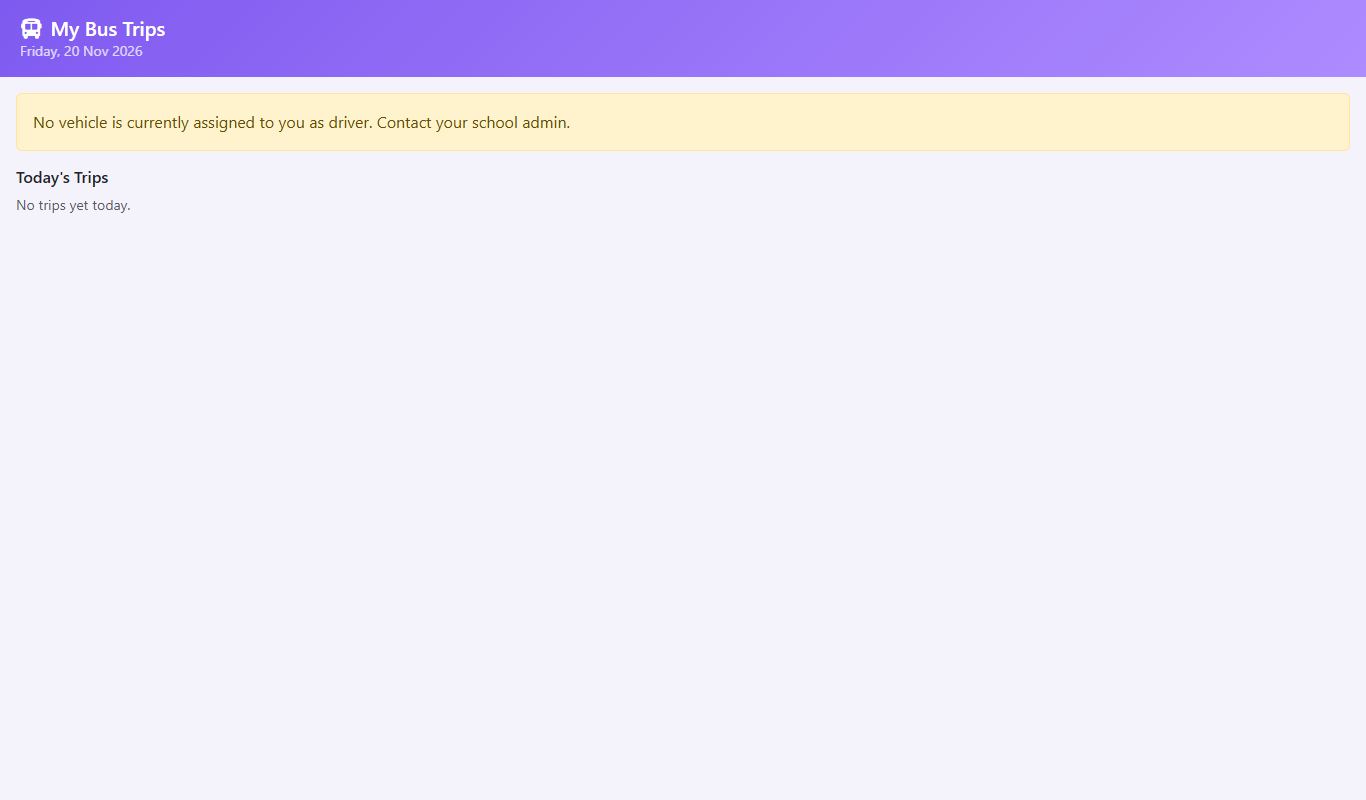
- Sign in on your phone and open My Bus Trips.
- Under Start a New Trip, choose the Vehicle, the Route and the Trip: Morning Pickup or Afternoon Drop-off.
- Tap Start Trip.
- Tap Start Reporting Location. Allow location access when the phone asks.
- Keep the page open and the screen on while driving. The page lists the Stops and the students for each stop. Tap Navigate to open directions.
- At the end of the route, tap End Trip.
Common errors and fixes
| Problem | Fix |
|---|---|
| The page shows GPS off | Turn on Location in your phone settings, then tap Start Reporting Location again. |
| "No stops configured for this route." | Ask the School Admin to add stops in Routes & Stops. |
| You cannot see My Bus Trips | Ask the School Admin to give you the Driver role and assign you to a vehicle. |
Install the app on your phone
Purpose: Open EasySchoolApp from your home screen like a normal app.
Who can use it: Everyone.
Steps (Android, Chrome)
- Open the EasySchoolApp web address in Chrome.
- Staff: click your avatar and choose Install app. Everyone else: tap the browser menu (⋮) and choose Install app or Add to Home screen.
- Confirm. The EasySchoolApp icon appears on your home screen.
Steps (iPhone, Safari)
- Open the web address in Safari.
- Tap the Share button, then Add to Home Screen.
- Tap Add.